Edit an Action Library
Edit an Action Library To edit an action library, click Edit next to the action library you want to modify on the Action Libraries page. The transactions editor opens.
To edit an action library, click Edit next to the action library you want to modify on the Action Libraries page. The transactions editor opens.
In the transactions editor, make the necessary changes and click Save & Close.
Warning
If another user is working in the same action library you are working on and saves changes before you do, once you try to save, a modal pops up and warns you that your changes cannot be saved.
Edit an Action Library with Dependencies
Dependencies are transactions and other action libraries where the action library is being used. Making changes to an action library that has dependencies may affect the logic or status of the transactions involved.
When you try to save logic or input or output changes, a warning modal appears for you to confirm or cancel the changes, and to review the dependencies associated to the action library that is being updated.
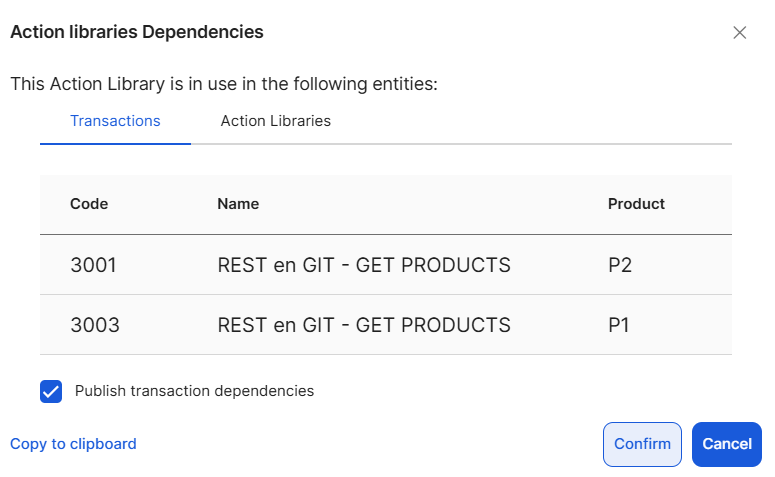
The pop-up includes the transactions' code, name, and product where the action library is implemented, and other action libraries that are also using the entity. From this modal, you can:
Click the Publish transaction dependencies to publish all affected transactions, both already published or pending publication.
Click Copy to clipboard to copy these details in text format. or
Click Confirm to proceed and update your action library.
Click Cancel to discard changes.
Important
If you save changes to an Action Library and choose to publish its dependent transactions, the library will be saved even if some transactions fail to publish due to building errors. Transactions with errors will remain in Pending publication and must be fixed and published manually from the editor. To learn more about the types of errors Studio can encounter, read Check Errors & Warnings.