Check Errors & Warnings
Check Errors and Warnings You can see errors and warnings for your transaction before publishing it by validating it ( Errors > Validate ). If there are errors within your flow, the tab displays a list of all errors and warnings, detailing the affected actions.
Before publishing a transaction, you can verify if it contains any errors or warnings related to its building by clicking Validate in the editor toolbar. This option performs structural validations, and displays the detected errors and warnings in the Errors & Warnings tab in the left panel.
In the Errors & Warnings tab, you see a list of all the errors and warnings, detailing the affected actions with a solution to the issue. To review an issue, click an error or warning in the tab to be directed to the action that requires attention.
Validations also trigger when clicking the following actions:
Save (
 ) (from canvas or Transactions page)
Publish (from canvas or Transactions page)
Run transaction (
 ) (from canvas or Transactions page)
Generate and publish (an app)
When clicking Save or Publish, an additional logic validation is perform to detect any logic errors within the transaction, such as nonexistent actions or actions that are not correctly referenced within the flow. Read below to learn how errors affect the saving and publication processes.
Publishing and Saving with Errors
Validations directly affect whether a transaction can be saved, published, or tested with the Run transaction feature. The behavior depends on the validation results.
By definition, errors block the possibility to publish, save or run a transaction, whereas warnings do not work as blockers and still allow you to perform any of these actions.
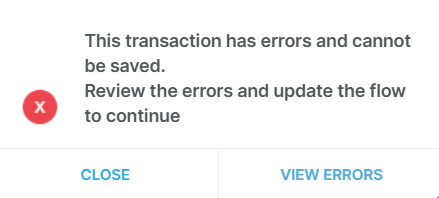
When trying to publish, run or save a transaction that contains errors, Studio prevents you from doing so and gives the possibility to review those errors. Click View errors and the Errors & Warnings tab opens automatically.
Types of Errors
When validating a transaction, Studio may display the following errors and warnings. Errors must be resolved before saving or publishing.
Title | Type | Description and Solution |
|---|---|---|
Action not connected | Warning | There is an action disconnected from the flow. For example, the environment detected an issue with a Set Variable action that is not connected to the transaction flow. Review your flow and connect the action that is isolated from the flow. |
Unconnected socket | Warning | Some inputs or outputs within a node are not being invoked in the transaction flow. For example, an output set on a Script node is not being retrieved as an input on the next action in the flow. Review you flow to verify where these sockets should be in use. |
Unset Variable | Warning | There is a Get Variable action retrieving a variable that is never set on the flow with the Set Variable action, or the variable name is not matching the name set on Set Variable. Review the transaction and verify that the variable used in Get Variable is declared in a Set Variable action node. |
Unused Variable | Warning | There is a Set Variable action in the flow that is never being retrieved with a Get Variable action, or the name was entered incorrectly in the Get Variable. Review the transaction and verify that the variable set is used with a Get Variable action. |
Duplicate variable name | Error | The same variable name is used in both input and output sockets of a Script action. Review the transaction and use a different variable name. |
Inconsistent table data | Error | The table structure or element count does not match between connected actions. Review the Table data type or elements match in both nodes. |
Missing value in Iterator | Error | The Iterator action node in the canvas is not properly set and needs to contain an input value. |
Invalid parallel data usage | Error | The parallel flows are not being used correctly, since an output from one parallel flow is used as input in another one within the same Parallel node. Avoid embedding parallel flows. |
Important
This list is still in progress and is not complete. If you need more information about an error you see in your environment, contact Support.