Business Parameters Environment Values (BAP Props)
A business application package contains business parameters, which are configurable values used to give different functionalities to an app. Parameters values can vary depending on the environment in order to adjust timeouts, configure endpoints, enable and disable functionalities, and more.
The BAP properties feature (also known as BAP Props) allows you to manage business parameters values that are in use in your different environments without having to manually edit them after importing new BAPs.
Note
To learn how to create business parameters in Studio, refer to the Business Parameters article.
Navigate the Environment Values Page
To access the Environment Values page and verify the business parameters in use in a BAP and their values, follow these steps:
Access Studio and, in the Dashboard, click Business Application Packages.
Locate the BAP on the list, hover over it and click the BAP Props icon
 .
.The Environment Values page opens.
In this page, you see a list of business parameters included in the business application package, their default value and the values in each environment available.
From the toolbar, you can search parameters by code or values, or click the checkbox to only display business parameters with updated values. Values that were updated appear in blue. Additionally, you can click the Copy values to another version icon ( ) to copy business parameters values from another version, or click Add environment (
 ) to assign values for business parameters for specific environments.
On the list, you can click empty fields to add a value for an environment, or click existing values to modify them. Additionally, hovering over an environment column displays the  icon that allows you to download a configuration file. This file contains the values set for the selected environment and is included in the implementation.
Configure Environment Values
To add a value to a business parameter for a specific environment, follow these steps:
If the environment is not created, click the Add environment (
) icon in the toolbar.The Add environment modal window opens. Complete the environment type (choose between VTQA, QA, HOMO or PROD) and add the environment name, which is the associated node. I.e. NDA1.
Important
The environment name must match the node associated to the environment. This name is used by the deployment engine to assign values correctly.
Then, locate the business parameter in the list and, under the environment column, add the value you want to use. If you want to revert it to a previous value, click the Revert to icon.
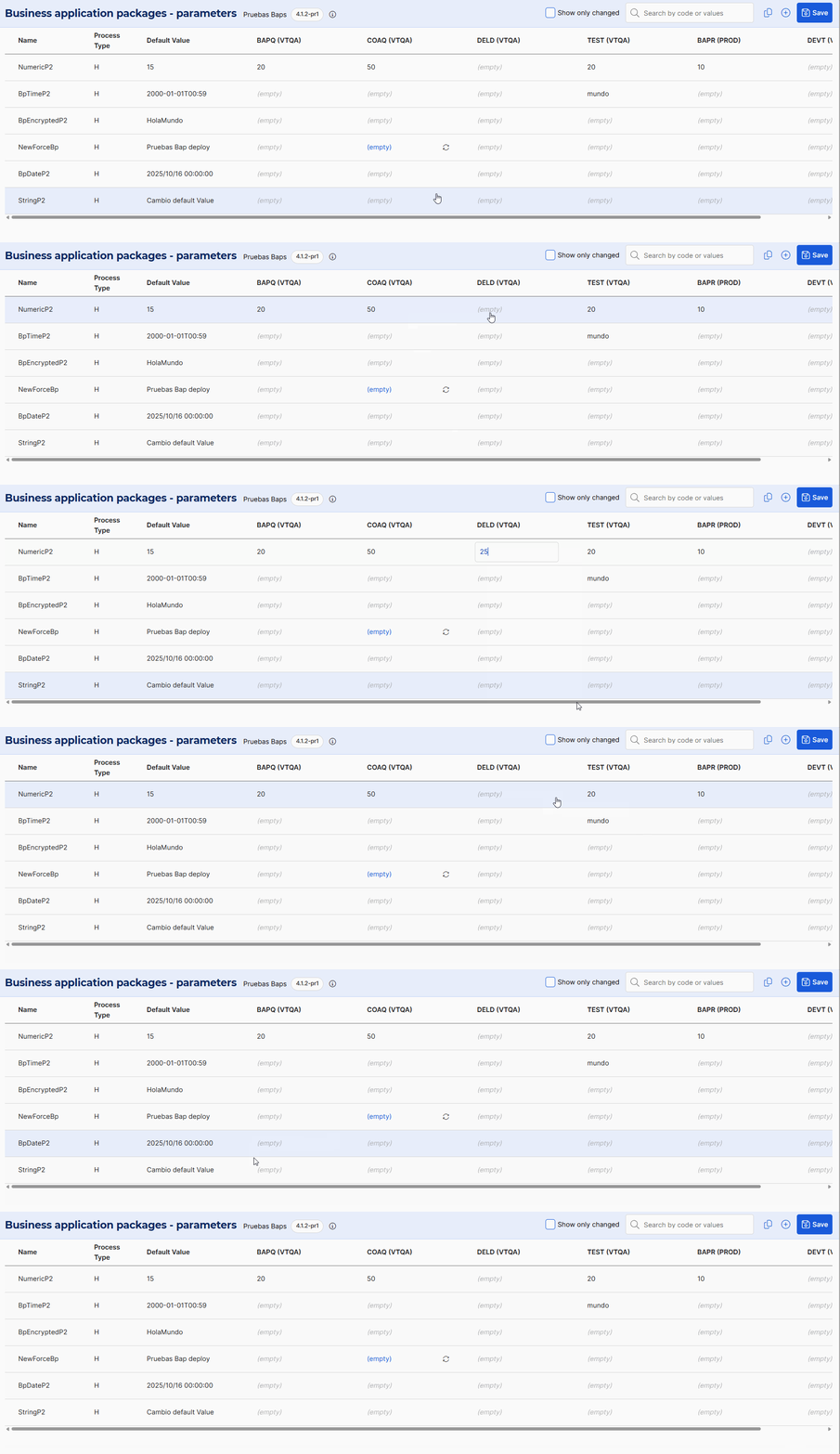
Click Save to confirm changes.
If you leave a blank field for an environment, the platform uses the default value set when creating the business parameter. For example, if a parameter's default value is 20, QA and DEV environments value is 10, and HOMO is left blank, the HOMO environment adopts the default value, which is 20.
You can change business parameters values in bulk and replicate the values applied in a different version. This allows you to reuse configurations already validated and reduce errors when an app keeps the same logic among versions. To do this, follow the instructions below:
Click
 in the toolbar and a modal window opens.
Click the versions drop-down menu and select the BAP version that contains the values you want to use.
Click Copy to confirm, and the business parameters will adopt the values used in the selected version for each environment.