Dependencies
Apps built in Studio might be composed of multiple modules that work together to define the app’s behavior. These modules together with the transactions repository, are managed as dependencies of a main app. Dependencies allow you to reuse logic, share UI components, and consolidate transactional behavior without duplicating work across projects.
Each dependency works as an isolated repository with its own branches. The main app references these dependencies and can choose which branch of each one to use. This makes it possible to test new features, switch between versions, or troubleshoot issues without affecting other apps or environments.
On the Dependencies page, you can view and manage all modules and transactions linked to your app, understand how they relate to each other, and select the specific branches that your app will use.
Navigate the Dependencies Page
The Dependencies page shows all the modules and transactions linked to your app and the branches selected for each one of them. From this page, you can add new dependencies to your main app, and search for the ones already linked to your app.
Dependencies are divided into two sections: the Transactions logic section, which shows the global transaction logic repository and the branch linked to the app, and the Modules section, which shows every module linked to the app with the branch selected.
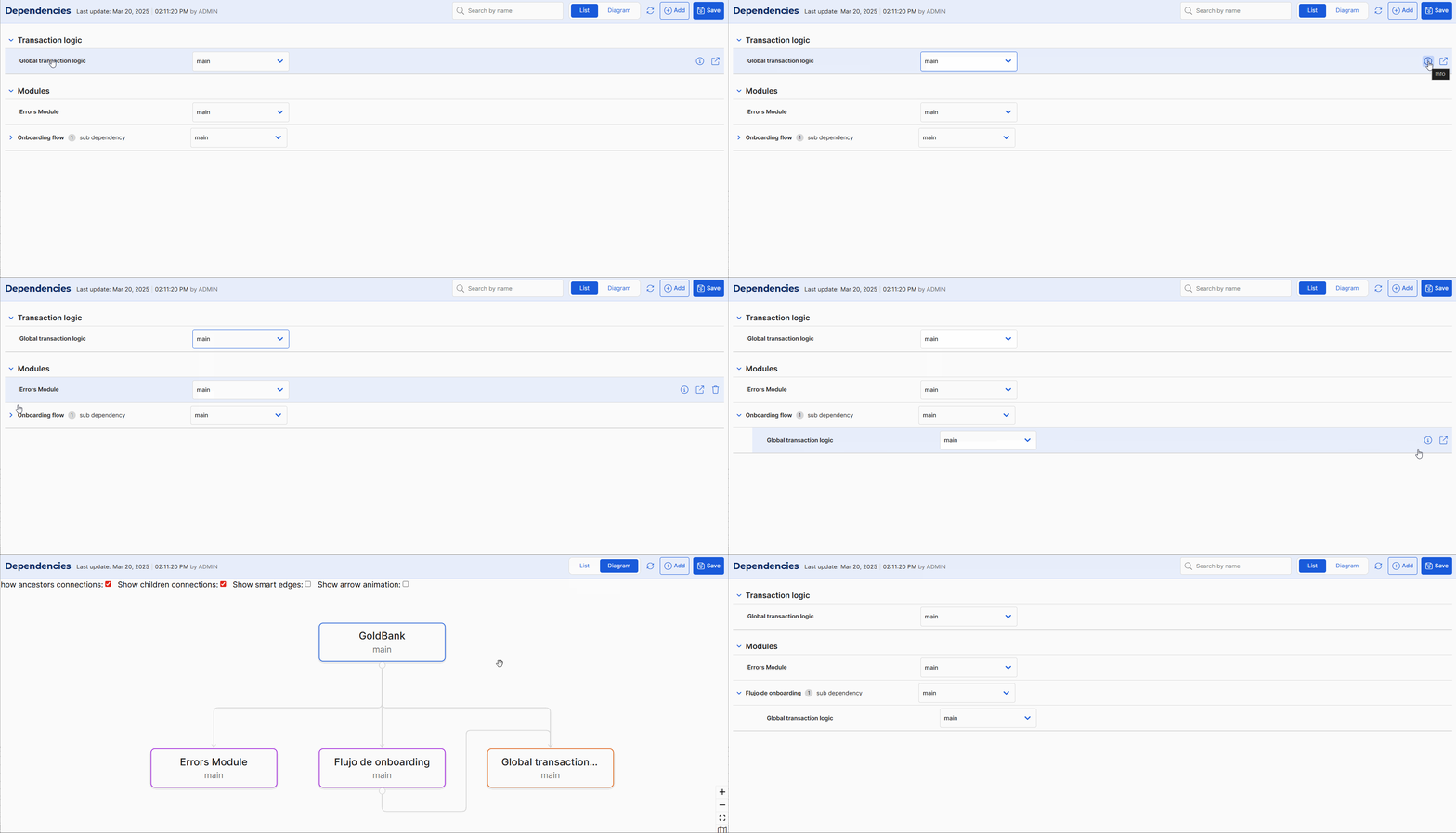
By default, you see dependencies in a list. Click Diagram to illustrate how dependencies are connected to each other and which branches are involved.
The branches drop-down menu next to each dependency allows you to switch the branch linked to your app. Additionally, if you hover over a dependency, you can see a set of icons, which you can click to perform different actions:
The Info icon (
 ) shows more information about the selected dependency, such as the name, the date it was last updated and the user that modified the entity.
The Open external link icon (
 ) opens the dependency in its own Studio window.
The Delete icon (
 ) removes the link to the selected dependency. This is not available for the global transaction logic repository in apps.
The Apply to all icon (
 ) appears when you change the branch, and this dependency is being invoked more than once in the branch you are working on. This option allows you to apply this change of branch to all instances where this module is used as a dependency in the branch you are working on. Read Manage Conflicts and Overrides to learn more. For example, if you change a configurable component from branch main to hotfix and click , the hotfix branch will be used every time the configurable component appears as a dependency within the current branch.
If the linked dependency is linked to another repository or module, this is displayed as a subdependency. From the Dependencies page, you can also change subdependencies' branches by clicking the branch drop-down menu, as shown below.
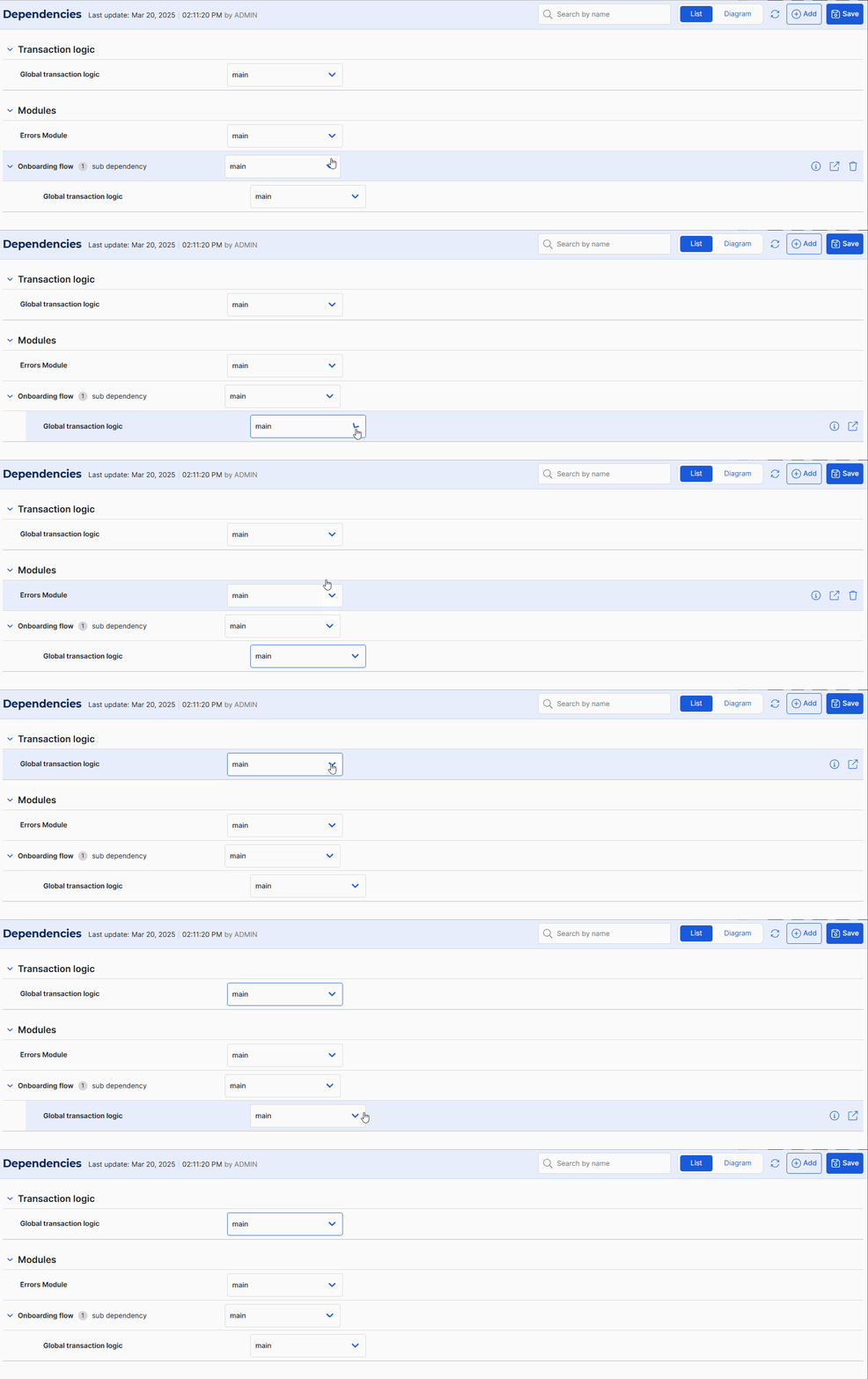
Important
Overriding subdependencies' branches only affects the app you are working on as a main app. This means that it does not change invoked modules' dependencies and will not affect other work environments.
Add Dependencies to your App
To add modules (configurable components or screens flows) as dependencies to your app, follow these steps:
Click Add in the toolbar. A new pop-up window opens and lists all modules available in the environment.
Click the checkbox next to the module you want to add, and click Add to finish the process.
The module added appears in the Modules section on the Dependencies page linked to the main branch. Next, select the branch you want to add as a dependency to your app.
Finally, click Save to confirm changes.
Important
Any dependencies for this module will also be added as subdependencies of the main app.
Manage Conflicts and Overrides
While building in Studio, if you invoke a dependency (whether it is a module or the transactions repository) that is also being invoked by another dependency within your app, both calls need to point to the same branch to be able to generate the app. On the contrary, a conflict warning appears.
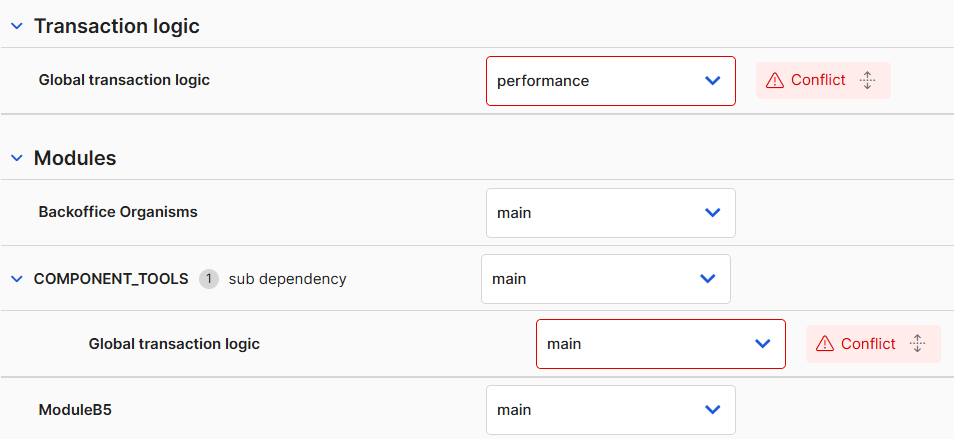
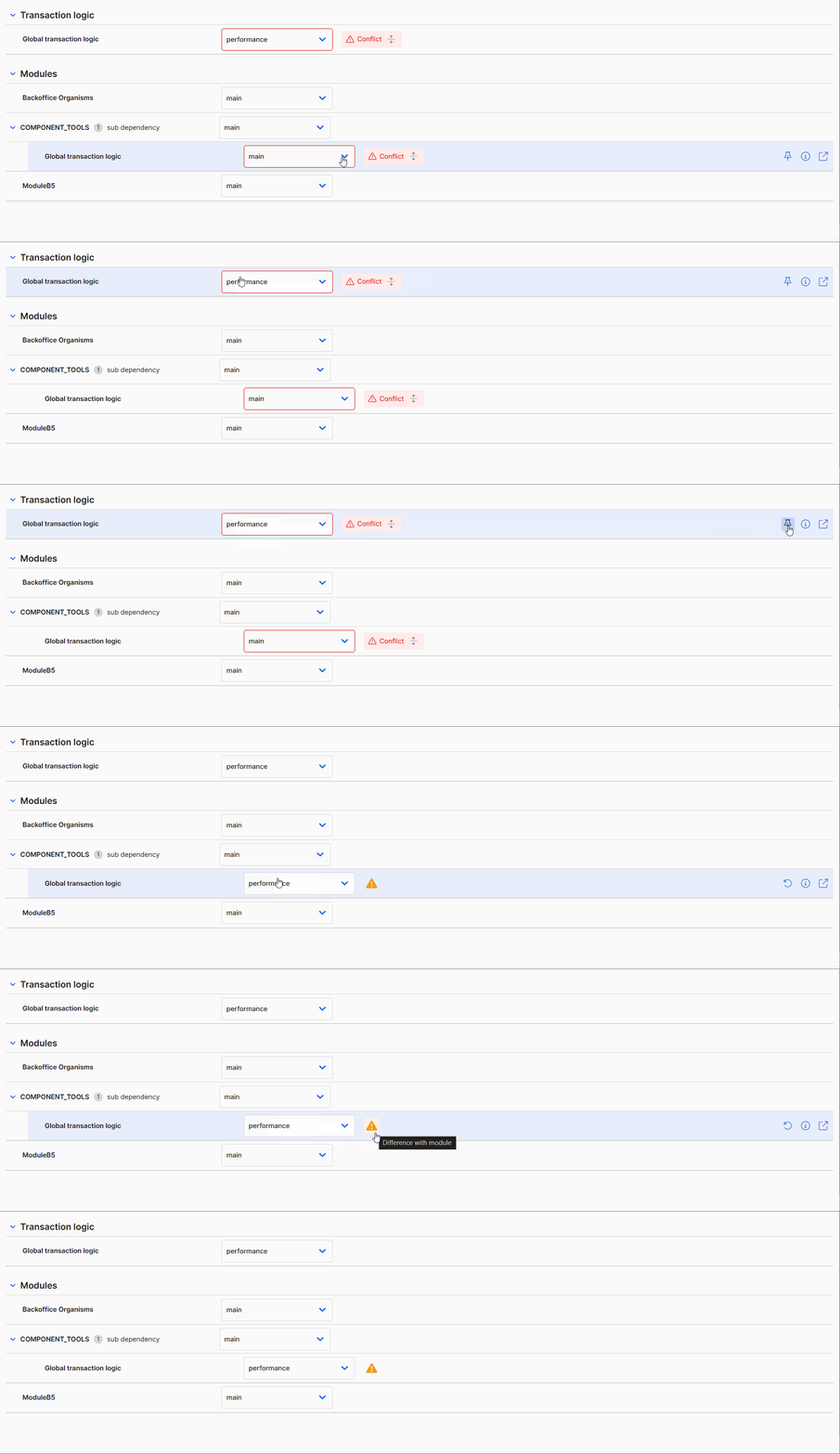
In this scenario, Studio does not allow you to save changes or generate the app. To fix this, you can override the branches that are being invoked and make them coincide. To do this, hover over the module with the branch you want to use and click Apply to all. By doing this, you will apply the same branch every time an app dependency is also invoking that dependency.
For example, if you click Apply to all in the icon next to the performance branch, the COMPONENT_TOOLS module (which is an app dependency) will also invoke the performance branch of the global transaction logic.
Important
Overriding subdependencies' branches only affects the app branch you are working on. This means that it does not change invoked modules' dependencies and will not affect other work environments.