Inspect an Application with Devtools
Once you click on an app's card to inspect it, you are directed to a new page with the Registers & Arrays tab open, which shows registers and arrays from your app in real time. See the annotated image below to learn how to navigate the UI.
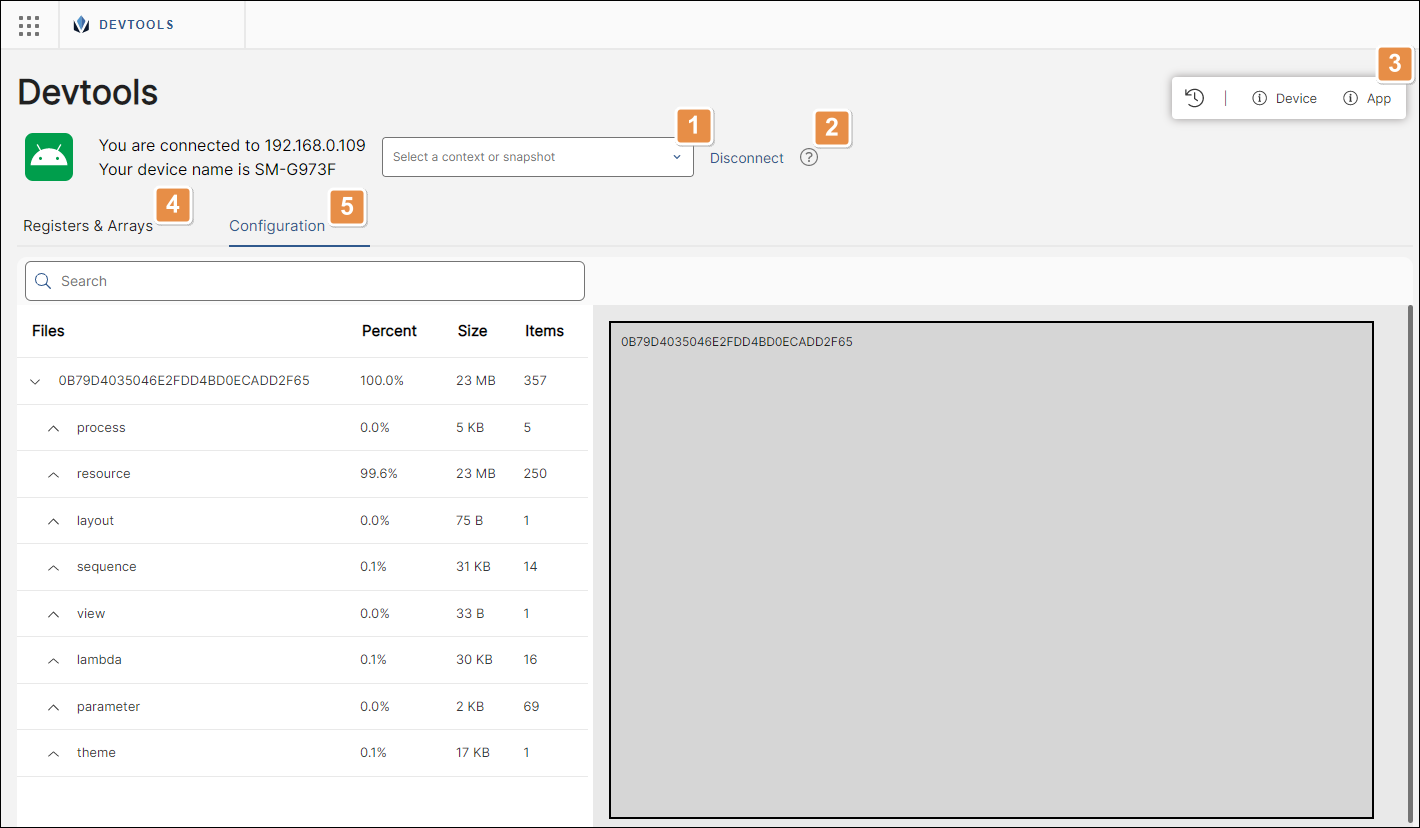
Context drop-down menu. Contexts are sets of registers and arrays values. Choose between the different contexts available, such as Global, Modules or Snapshots, if available. Global allows you to analyze the entire application. Below Modules you can see a list of every Studio module that is part of your app, if any. Select the one you want to analyze from the list. Snapshots are a type of context that is preconfigured from Studio. Read Snapshot to learn more about this type of context.
Disconnect. Click to disconnect your device.
Toolbar.
Context Activity
Checks a history of any changes applied to the selected context. This includes updates made to arrays and registers. Also, there is a search bar you can use to find registers and arrays by name or value.
Device
Shows basic information about the connected device, such as model, device name, operating system, RAM memory usage, disk space, and carrier. It also details the view you are navigating.
App
Shows the application's properties and their values.
Registers & Arrays panel. This panel shows information about the registers and arrays set in your app for the context selected in the drop-down menu.
Configuration panel. This panel details information about your app's configuration and its elements.